Route Returns makes it easy for merchants to manage returns across multiple locations, products, and return methods using Shipping Zones. Whether you're offering in-store drop-offs, return service locations, or pre-paid return labels, Shipping Zones help you tailor the experience based on geography, product type, and logistics.
Here’s a complete guide to setting up and customizing your shipping zones.
Where to Find Shipping Zones
To set up or manage your Shipping Zones:
- Go to Settings > Shipping in your Route Returns dashboard.
- Click + Add Zone to create a new zone.
- Or, click the three-dot menu next to an existing zone to edit, delete, or duplicate it.
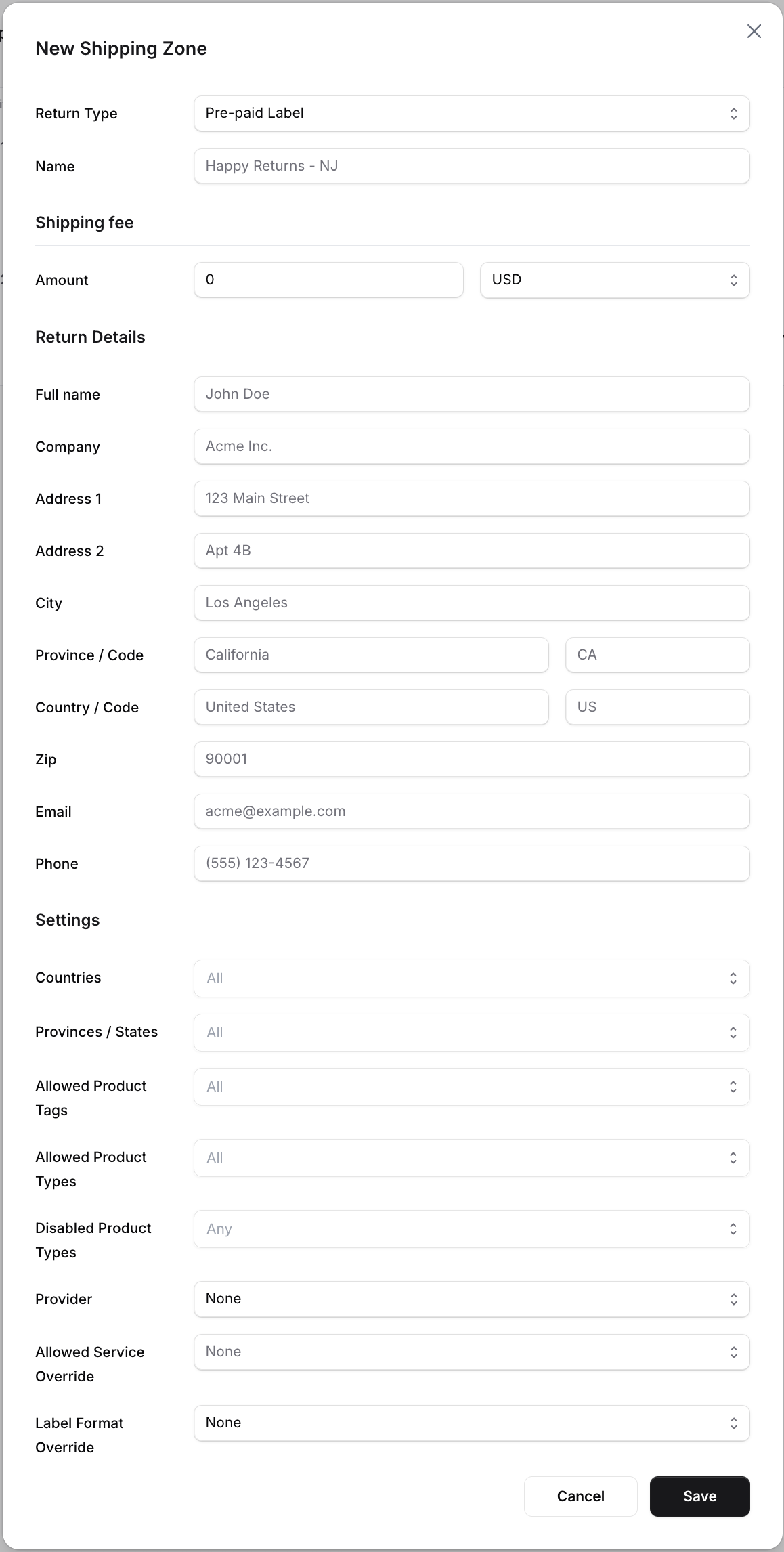
Creating a New Shipping Zone
When creating a new shipping zone, you'll configure a few required and optional fields:
1. Choose a Return Type
Select the Return Type from the dropdown. This determines how customers will send their returns. Available options include:
- Pre-paid Label: A return shipping label is generated for the customer.
- No Label: The customer handles shipping the return on their own.
- In-Store Drop-Off: Customers drop off returns at your physical location.
- Return Bear: Uses Return Bear service locations for customer drop-offs.
- Happy Returns: Uses Happy Returns service centers.
- EcoDrop: (Currently inactive) This option is unavailable at the moment.
2. Name the Shipping Zone
Give your zone a clear and descriptive name. For example: “US - Apparel Returns” or “Canada Electronics.”
3. Set the Shipping Fee
Define the shipping fee for this zone. This fee may be charged to the customer or deducted from their refund. You can also specify the currency of the fee.
4. Enter Return Location Details
Provide the return location's address, email, and phone number. This is where returns will be sent for this specific zone.
Advanced Settings for Shipping Zones
Within the Settings section of each Shipping Zone, you can fine-tune eligibility and logistics:
Country and Region Eligibility
- Countries: Limit the shipping zone to specific origin countries (default is all).
- Provinces/States: Further narrow the zone to regions within the selected countries (default is all).
Product Rules
- Allowed Product Tags: Only allow returns for Shopify products with these tags.
- Allowed Product Types: Limit to specific Shopify product types.
- Disabled Product Types: Exclude certain product types from eligibility.
Shipping Provider Options
- Provider: Select a specific return shipping provider (optional). Options include:
- None
- EasyPost
- Happy Returns
- Return Bear
- Shippo
- Untracked
- Allowed Service Override: Choose the preferred shipping service. Options include:
- None
- Australia Post
- Canada Post
- Sendle
- DHL
- FedEx
- Purolator
- Royal Mail
- Royal Mail V3
- UPS
- UPS DAP
- USPS
- USPS Returns
- Label Format Override: Customize the return label format. Options include:
- None
- No Reference
- Return Reference Both
- Return Reference Destination
- Return Reference Origin
- RMA Reference
- RMA Reference Replace Sender
Pro Tip: Create Multiple Zones
You can create multiple shipping zones to handle different needs. For example:
- One zone for domestic returns
- Another for international customers
- Zones tailored to specific product lines, such as fragile electronics or high-value items
This lets you optimize costs, speed, and customer experience.
Final Thoughts
Shipping Zones in Route Returns give you powerful control over how your returns are processed. Whether you're using in-store returns or third-party providers like Return Bear or Happy Returns, configuring zones helps streamline your logistics while keeping customers informed and supported.
Need help? Reach out to our support team or visit the rest of our Help Center.