Setting up the right return reasons in your return portal can make or break your returns experience—for both your customers and your operations team. Whether you're looking to enable smarter auto-approvals or help your 3PLs sort items more effectively, Route makes it easy to configure and customize the return reasons shoppers can choose during the return process.
This guide walks you through exactly how to create, edit, and structure return reasons in your Route Returns portal.
🚀 Getting Started: Where to Set Up Return Reasons
-
Go to:
Settings > Return Reasonsin your Route Returns dashboard. - Find the Default Return Group (or create a new group if needed).
- Click the + icon to add a new reason, or the edit icon to update an existing one.
📝 Note: Return reasons in the default group will apply to all returns, unless you've created a Custom Return Group and overridden it using a workflow.
🧾 What You Can Configure for Each Return Reason
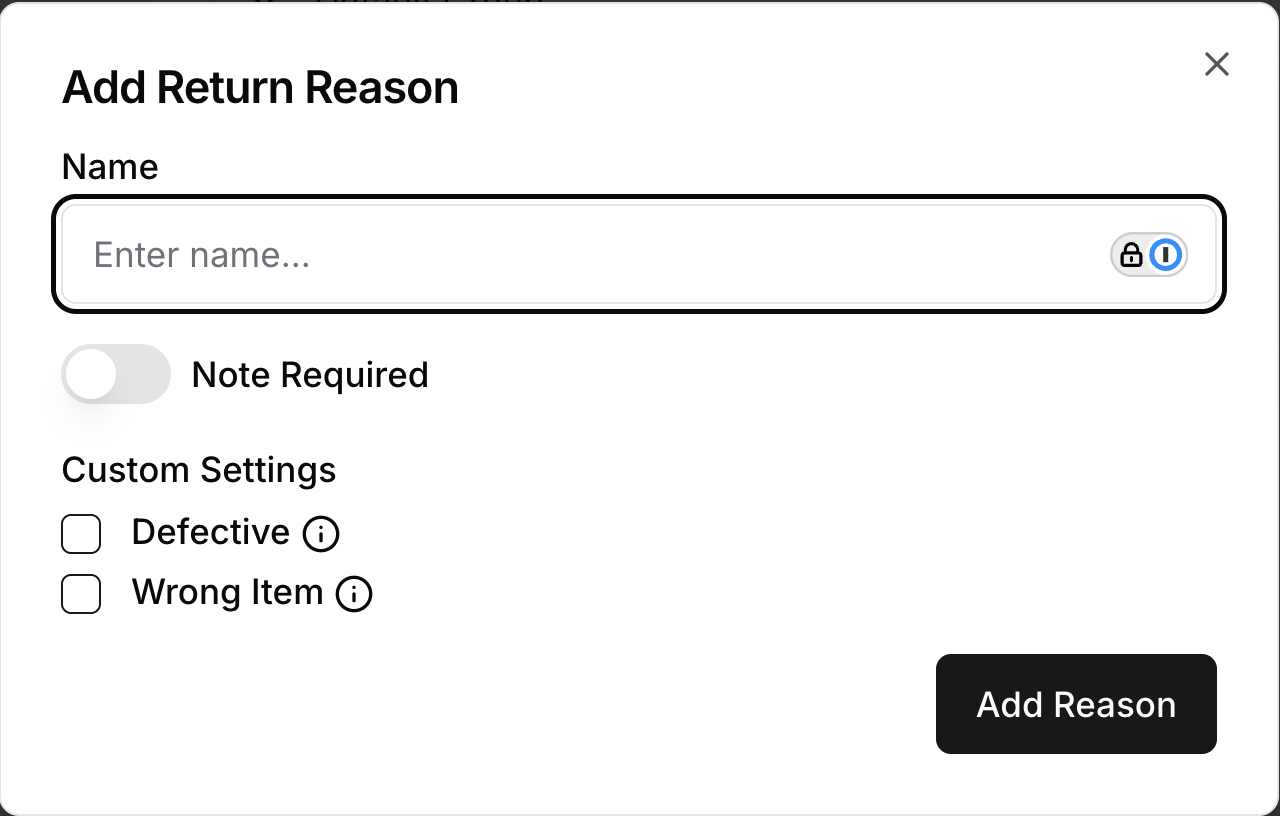
When adding or editing a return reason, you can customize the following:
1. Return Reason Text
This is the reason your customer sees in the return portal (e.g., Item didn’t fit, Wrong item sent, Defective product, etc.).
2. Require Additional Notes
Toggle whether customers must add extra context on a follow-up screen:
- Required: They must fill out the notes field.
- Optional: The field will still show, but they can skip it.
This is great for collecting information without forcing friction into the process.
3. Mark as 'Defective' or 'Wrong Item'
You can flag a reason as either:
- Defective
- Wrong Item
🔍 Why this matters:
- If you're using Route's AI image verification to auto-approve returns, Defective reasons will never be auto-approved. They go into a “Requested” state for your manual review.
- Enabling either of these settings will allow the customer to exchange their item for an identical variant on the exchange screen - otherwise the identical variant will be greyed out.
- These flags can also help your warehouse or 3PL better organize and prioritize returns. We can customize how these reasons appear (e.g., tags like DEFECTIVE or WRONG ITEM) on your labels so your receiving team gets more clarity. If you want to enable this, please reach out to Route Support.
That said, outside of image verification and labeling for operations, these tags don’t change any other core functionality.
🔗 Creating Sub-Reasons (Parent + Child Structure)
Want to give customers more specific options under a broader category? Use sub-reasons!
Example:
-
Parent Reason: “Item didn’t fit”
- Sub-Reason: “Too big”
- Sub-Reason: “Too small”
How to set this up:
- Create the parent reason first.
- Then click the + icon on that reason to add sub-reasons.
This helps you collect more granular return data while still keeping the main reason list easy to browse.

💡 Best Practices
- Keep your reason list concise to avoid overwhelming customers.
- Use required notes only when the information is critical to your decision-making process.
- Tag reasons smartly (like 'Defective') if you're relying on operational workflows or manual review.
- Revisit your reasons periodically to align them with your returns policy and customer feedback trends.
✅ Summary
Here’s what you can do with Route Return Reasons:
- Create reasons your customers see during the return process.
- Require or optionally allow customer notes.
- Flag reasons as ‘Defective’ or ‘Wrong Item’ for workflow and warehouse efficiency.
- Nest sub-reasons under broader parent categories.
- Use the default group for universal reasons—or create custom groups.
Need help setting up Custom Return Groups or integrating reasons with workflows? Stay tuned for our next article or reach out to support anytime!