The 'Final Sale Tags' Workflow in Route Returns is enabled by default and replaces the previous 'Final Sale Product Tags' list found in 'Settings.' This workflow helps exclude certain products from return eligibility by applying specific tags. Follow the steps below to edit the workflow.
Accessing the Workflow
- Log in to your Returns Admin account.
- In the left-hand menu, click on Workflows.
- Locate the 'Final Sale Tags' workflow from the list.
- Click the ⛭ on the right and then select Edit.

Editing the Workflow
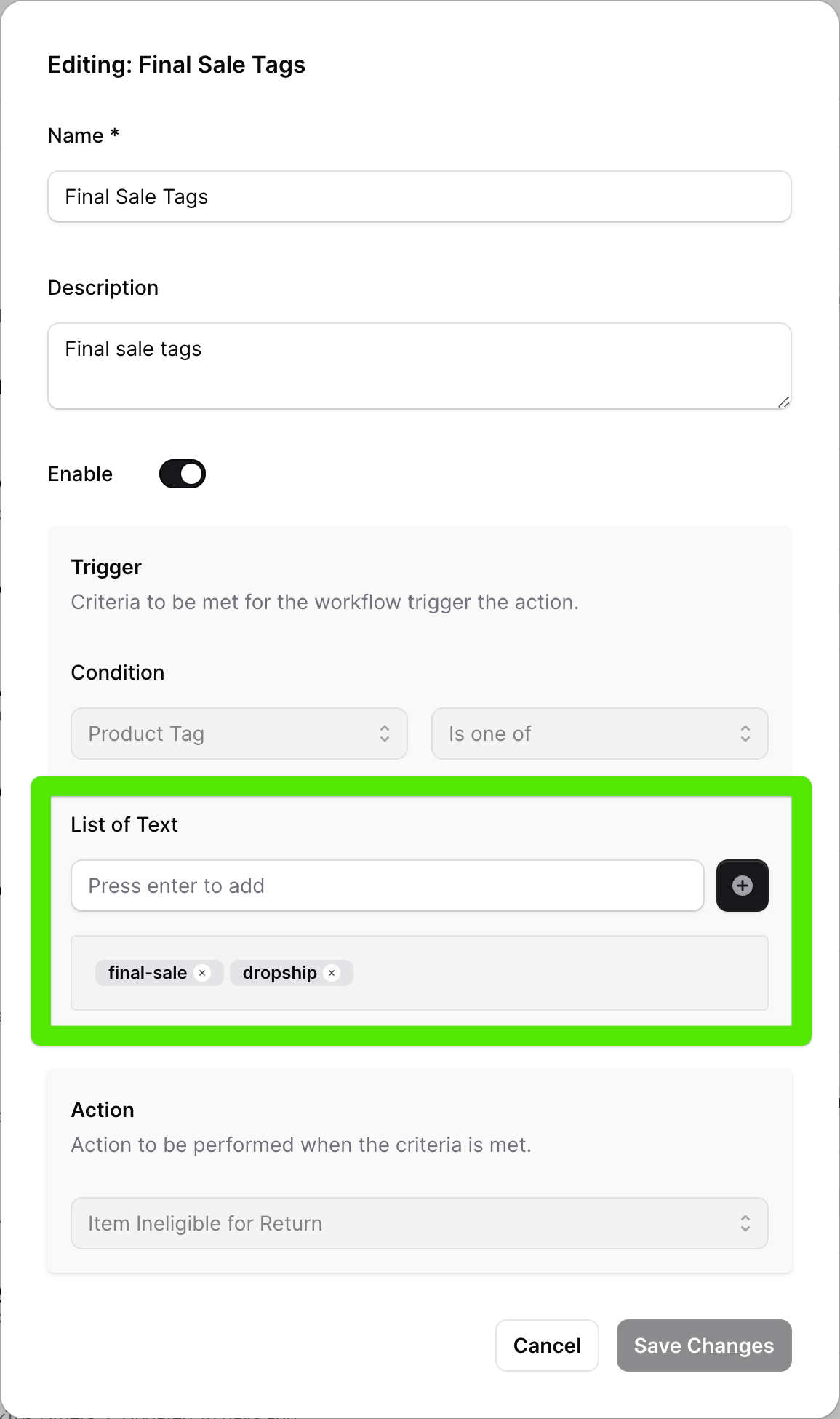
- In the workflow editor, find the 'List of Text' field.
- To add a new product tag, type the tag in the field.
- Click the ⊕ to add the tag to the list.
- Repeat the process for each additional tag.
Saving Changes
- After adding all necessary order tags, click Save Changes.
- The updated tags will now be used to exclude products from return eligibility.
Need Help?
If you have additional questions or need further assistance, contact Frate support at support@frate.com